Lecture 2 Lecture 3 Lecture 4 Lecture 5 Lecture 6

Introduction to Web Development Course

What is Internet?

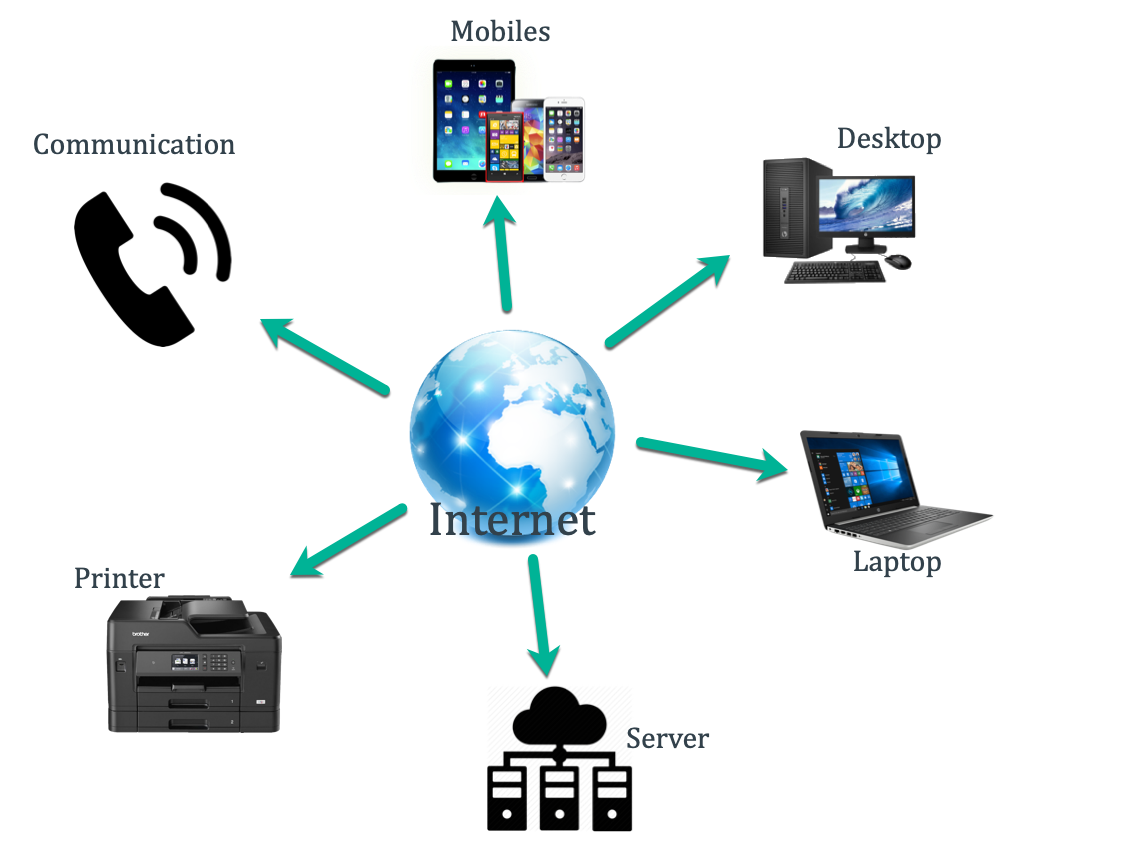
The Internet is a huge network that connects computers, mobiles, and servers all around the world.

Think like this, Just like a phone network connects all phones so they can call each other The Internet connects devices so they can share information, send messages, and receive data

Because of Internet you can,

The Internet is the world’s biggest connection system that makes websites, apps, and online services possible.

How is data transfered?

When you use the Internet (like opening YouTube or sending a WhatsApp message), data is transferred in small pieces called “packets.”

Here’s how it works step by step:

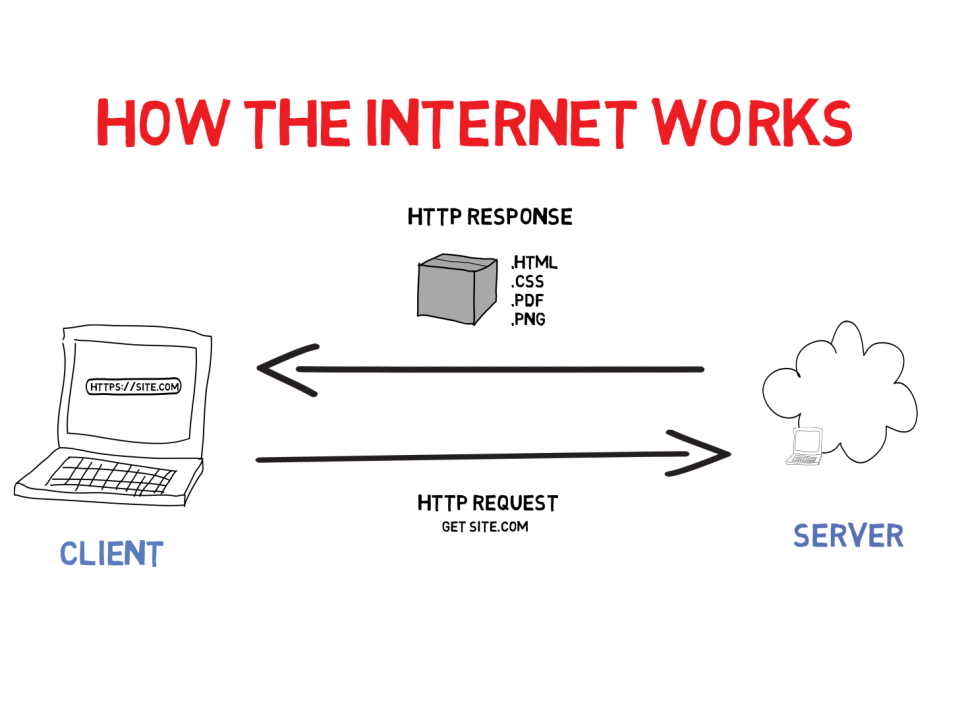
  1. You request something

    • Example: You open YouTube and click on a video.
    • Your device sends a request: “I want this video.”
  1. The request travels through the network

    • First, it goes to your WiFi router or mobile tower.
    • Then it passes through many servers, cables, and routers around the world.
  1. It reaches the YouTube server

    • The server finds the video you asked for.
  1. The server sends back the video

    • But not as one big file!
    • The video is broken into tiny packets of data (like puzzle pieces).
  1. Packets travel back to you

    • These packets travel through different routes on the Internet.
    • Each packet knows your device’s IP address,so it reaches you.
  1. Your device reassembles packets

    • When all packets arrive, your phone/computer puts them back together.
    • Boom! The video starts playing
In Short=> Data = split into packets → travel through network → reach your device → reassembled → shown as video, message, or website.

What is IP address?

Types

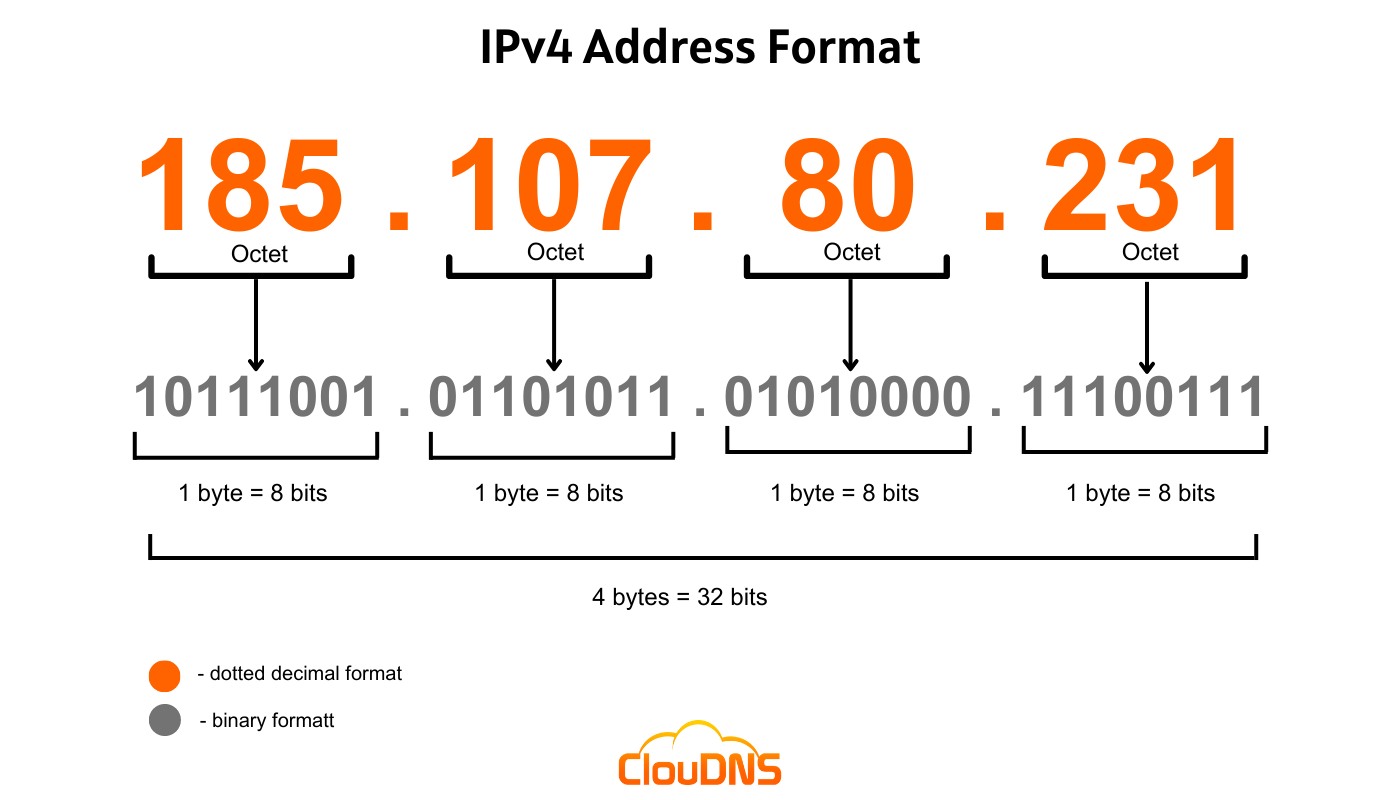
  1. IPv4 => Old, number with dots (e.g. 194.150.46.1)
  2. IPv6 => New, longer with colons (e.g. 2001:db8::1)
  3. Public IP => Used on Internet, visible to everyone
  4. Private IP => Used inside home/office network (e.g. 192.168.0.1)
  5. Static IP => Fixed, does not change
  6. Dynamic IP => Changes automatically each time you connect

How to access a website

  1. Enter Your Website
  2. DNS Lookup
    • DNS converts youtube.com into an IP address (e.g. 142.250.183.238).
  3. Send Request to Server
    • Your browser sends a request to that IP address through the Internet.
  4. Server Processes Request
    • The YouTube server finds the required files (HTML, CSS, JS, videos).
  5. Data Sent Back in Packets
    • The server sends the data in small packets across the Internet.
  6. Browser Displays Website
    • Your browser reassembles the packets and shows the website on your screen.

Who assigns the IP?

  1. Globally (Big Level)
    • IANA (Internet Assigned Numbers Authority) manages all IP addresses.
    • IANA gives large blocks of IPs to Regional Internet Registries (RIRs) like:
      • APNIC (Asia Pacific)
      • ARIN (North America)
      • RIPE NCC (Europe, Middle East, Central Asia)
      • LACNIC (Latin America)
      • AFRINIC (Africa)
  2. Internet Service Provider (ISP)
    • Your ISP (e.g., Jio, Airtel, BSNL) assigns an IP when you connect to the Internet.
    • Mostly it is a Dynamic IP (changes automatically).
  3. Inside Home/Office (Private IP)
    • Your WiFi Router assigns Private IPs to devices using DHCP.
    • Example: 192.168.1.2 for phone, 192.168.1.3 for laptop.

Concept of DNS?

  1. User Enters Website
    • You type youtube.com in the browser.
  2. DNS Overview
    • DNS (Domain Name System) is like the phonebook of the Internet.
    • It converts easy-to-remember domain names (e.g., youtube.com) into IP addresses (e.g., 142.250.183.238).
    • This allows your browser to know which server to contact.
  3. Browser Cache Check
    • The browser first checks its own cache to see if it already knows the IP address of youtube.com.
  4. Operating System Cache Check
    • If not in the browser cache, the request goes to the OS cache (stored in your computer).
  5. Router/ISP DNS Cache
    • If still not found, the query goes to your router or ISP DNS cache.
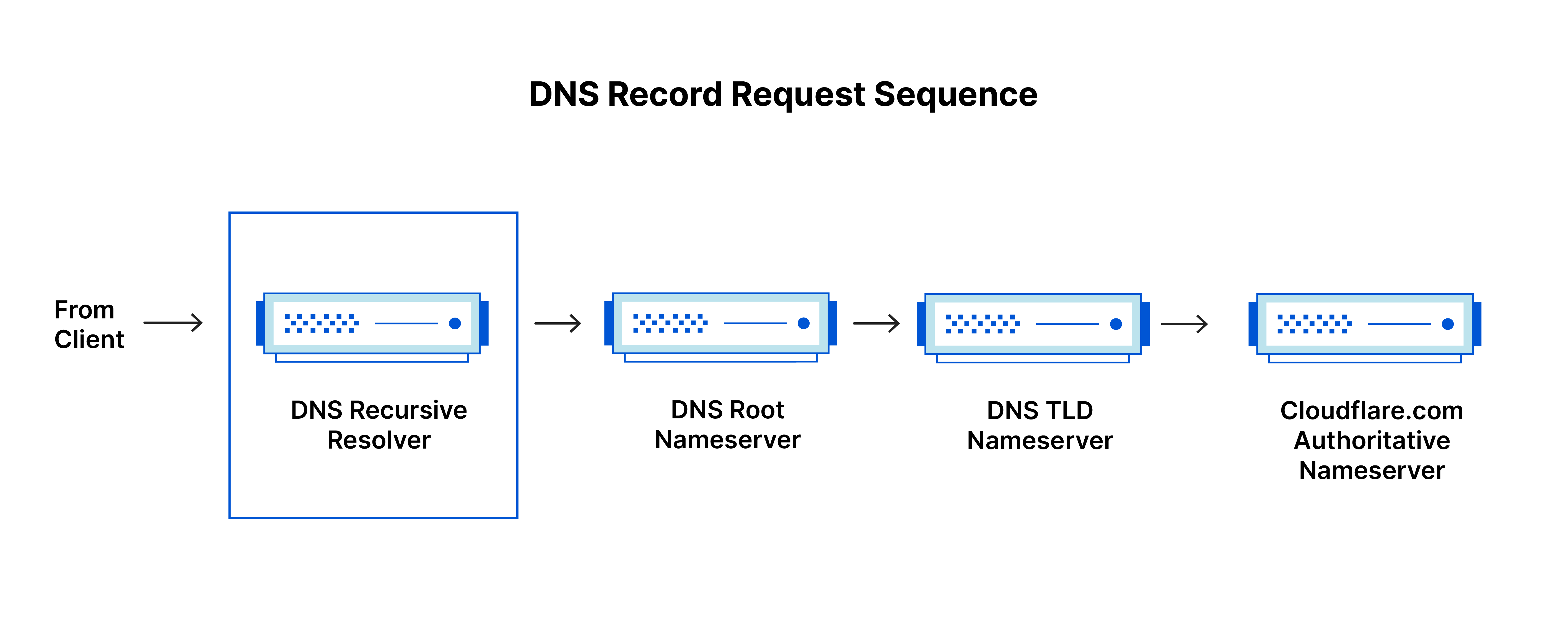
  6. Recursive DNS Resolver
    • If the ISP does not have the record, it forwards the request to a recursive DNS resolver which starts finding the IP.
  7. Root DNS Server
    • The resolver first asks a Root DNS Server where to find the Top-Level Domain (TLD) server (e.g., for .com).
  8. TLD DNS Server
    • The TLD server (e.g., .com server) tells where the Authoritative Name Server is located for youtube.com.
  9. Authoritative DNS Server
    • The authoritative server has the final record and provides the actual IP address of youtube.com.
  10. Response Back to Browser
    • The IP address is sent back through the resolver → ISP → your computer → browser.
  11. Website Loads
    • Your browser now knows the IP and can directly contact the YouTube server to load the website.
  12. Importance & Summary
    • DNS allows humans to use easy names instead of IP numbers.
    • It works silently in the background to translate names into IPs.
    • Flow in short: Browser → OS → Router/ISP → Recursive Resolver → Root → TLD → Authoritative Server → IP Found → Browser loads site.

Problems in Data transfer and MAC address

  1. Problems in Data Transfer
    • Data Loss: Some packets may get lost during transfer due to network issues.
    • Data Corruption: Packets can get corrupted due to interference or errors.
    • Delay/Latency: Data may take longer to reach the destination because of traffic or long routes.
    • Congestion: Too many packets in the network can slow down transfer or cause packet drops.
    • Security Issues: Data can be intercepted or tampered with by hackers if not encrypted.
  2. MAC Address
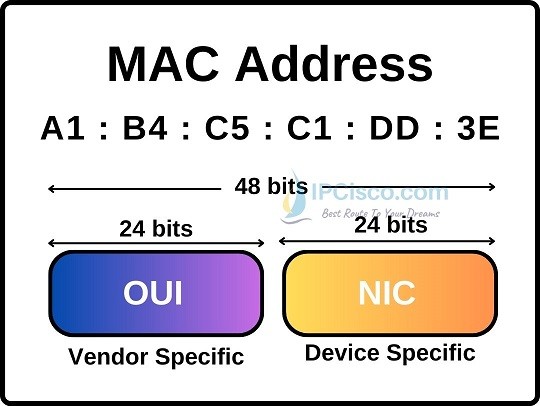
    • MAC (Media Access Control) address is a unique hardware identifier assigned to a network device (like a computer or mobile’s network card).
    • It is used to identify devices within the same local network (LAN).
    • Format: Usually XX:XX:XX:XX:XX:XX where X is a hexadecimal digit.
    • Example: 00:1A:2B:3C:4D:5E
    • MAC addresses are permanent and unique, unlike IP addresses which can change.

What are Port Numbers

  1. What are Port Numbers?
    • Port numbers are like door numbers on a computer that tell which application or service should receive incoming data.
    • They help the computer know where to deliver data among multiple programs running at the same time.
  2. How Ports Work
    • Each application or service uses a specific port number to communicate.
    • Example:
      • HTTP (web browsing) → Port 80
      • HTTPS (secure web) → Port 443
      • FTP (file transfer) → Port 21
      • SSH (secure login) → Port 22
  3. Types of Ports
    • Well-known Ports: 0–1023, reserved for common services.
    • Registered Ports: 1024–49151, used by specific applications.
    • Dynamic/Private Ports: 49152–65535, temporary ports for client connections.
  4. In Short
    • Port numbers = doors for data → tell the computer which application should handle the data.

IPv4 vs IPv6

  1. IPv4
    • Old version of Internet Protocol.
    • 32-bit address length.
    • Format: Four numbers separated by dots (e.g., 192.168.1.1).
    • Total addresses: ~4.3 billion.
    • Mostly used in older networks.
    • Supports basic security (needs extra setup for encryption).
  2. IPv6
    • New version of Internet Protocol to solve IPv4 address shortage.
    • 128-bit address length.
    • Format: Eight groups of hexadecimal numbers separated by colons (e.g., 2001:0db8:85a3:0000:0000:8a2e:0370:7334).
    • Total addresses: practically unlimited.
    • Designed for modern networks and IoT devices.
    • Built-in security with IPsec.
  3. In Short
    • IPv4 = Old, shorter addresses, limited supply.
    • IPv6 = New, longer addresses, practically unlimited, more secure.

MAC address format

  1. What is MAC Address?
    • MAC (Media Access Control) address is a unique identifier assigned to a network device.
    • It is used to identify devices within the same local network (LAN).
  2. MAC Address Format
    • Usually written in hexadecimal format.
    • Consists of 6 pairs of hex digits separated by colons or hyphens.
    • Example: 00:1A:2B:3C:4D:5E or 00-1A-2B-3C-4D-5E.
  3. In Short
    • MAC address = Permanent hardware ID for a device, used in local networks.

Port number format

  1. What is a Port Number?
    • Port numbers act like door numbers for applications on a device.
    • They tell the computer which program should handle incoming data.
  2. Port Number Range
    • Port numbers are 16-bit numbers ranging from 0 to 65535.
    • Divided into three categories:
      • Well-known Ports: 0–1023, for common services (e.g., HTTP = 80, HTTPS = 443).
      • Registered Ports: 1024–49151, for specific applications.
      • Dynamic/Private Ports: 49152–65535, temporary ports for client connections.
  3. In Short
    • Port number = Door for data to reach the correct application on a device.

Local Area Network, Switch & Router

  1. Local Area Network (LAN)
    • A LAN is a network that connects devices within a small area like a home, office, or building.
    • It allows devices to share resources such as files, printers, and internet connection.
    • Example: Computers in your office connected to the same network.
  2. Switch
    • A switch is a network device that connects multiple devices in a LAN.
    • It receives data packets and forwards them only to the device they are intended for.
    • Example: Office switches connecting PCs, printers, and servers.
  3. Router
    • A router connects different networks, such as your LAN to the Internet.
    • It decides the best path for data to travel from one network to another.
    • Example: Home WiFi router connecting your devices to your ISP and the Internet.
  4. In Short
    • LAN = Network in small area.
    • Switch = Connects multiple devices in LAN.
    • Router = Connects LAN to Internet or other networks.

Public and Private Addresses

  1. Public IP Address
    • A Public IP is assigned by your ISP and is visible on the Internet.
    • Used to identify your device/network globally.
    • Example: 142.250.183.238
    • Required for hosting websites, servers, or accessing the Internet directly.
  2. Private IP Address
    • A Private IP is used inside a local network (LAN).
    • Assigned by your router using DHCP.
    • Example ranges:
      • 192.168.0.0 – 192.168.255.255
      • 10.0.0.0 – 10.255.255.255
      • 172.16.0.0 – 172.31.255.255
    • Not visible directly on the Internet.
  3. In Short
    • Public IP = Global, visible on Internet.
    • Private IP = Local, used inside LAN.

Modern Routers

  1. What is a Modern Router?
    • A modern router is a device that connects multiple networks and manages traffic efficiently.
    • It not only routes data between LAN and the Internet but also provides additional features.
  2. Features of Modern Routers
    • Wireless Connectivity: Supports WiFi for wireless devices.
    • Firewall & Security: Protects network from unauthorized access.
    • Multiple Band Support: 2.4 GHz and 5 GHz bands for faster WiFi.
    • Quality of Service (QoS): Prioritizes traffic for important applications like video calls or gaming.
    • Parental Controls: Restrict access to certain websites or devices.
    • Guest Network: Allows visitors to connect without accessing main LAN.
    • Advanced Routing: Supports NAT, DHCP, and VPN connections.
  3. In Short
    • Modern routers = Fast, secure, wireless + smart traffic management + extra features for home/office.

What is a VPN?

  1. What is a VPN?
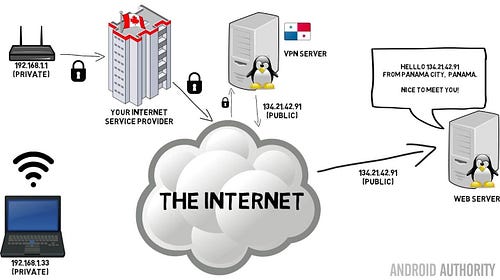
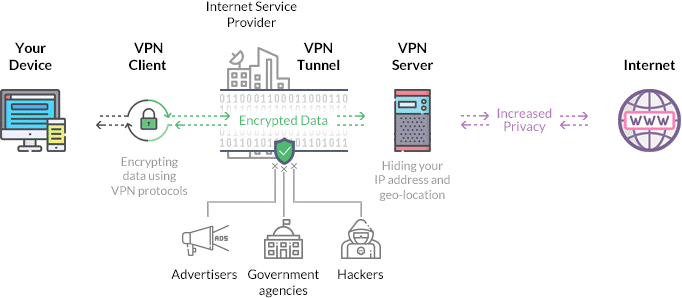
    • VPN (Virtual Private Network) is a service that creates a secure, encrypted connection over the Internet.
    • It hides your real IP address and protects your data from hackers or eavesdroppers.
  2. How VPN Works
    • Your device connects to a VPN server.
    • The VPN server forwards your Internet requests to the destination server.
    • The response comes back through the VPN server, keeping your IP and data hidden.
  3. Benefits of VPN
    • Hides your real IP address and location.
    • Encrypts your Internet traffic for privacy and security.
    • Allows access to geo-restricted content.
    • Safe use on public WiFi networks.
  4. In Short
    • VPN = Secure, private tunnel for your Internet traffic that hides your identity and protects data.

What is Web Development?

  1. What is Web Development?
    • Web development is the process of building and maintaining websites.
    • It includes everything from creating a simple static webpage to complex web applications.
  2. Types of Web Development
    • Front-End Development: Deals with the visual part of the website that users see (HTML, CSS, JavaScript).
    • Back-End Development: Deals with the server, database, and application logic (Node.js, Python, PHP, databases).
    • Full-Stack Development: Combination of front-end and back-end development.
  3. Importance
    • Allows businesses and individuals to have an online presence.
    • Enables creation of interactive and dynamic web applications.
    • Supports communication, e-commerce, and information sharing globally.
  4. In Short
    • Web development = Creating websites and web applications, both front-end (look) and back-end (functionality).

What is the MERN Stack?

  1. What is MERN Stack?
    • MERN Stack is a popular full-stack JavaScript framework used for building web applications.
    • The name MERN comes from the technologies it uses: MongoDB, Express.js, React.js, Node.js.
  2. Components of MERN Stack
    • MongoDB: NoSQL database to store application data.
    • Express.js: Backend framework that handles server-side logic and APIs.
    • React.js: Frontend library for building interactive user interfaces.
    • Node.js: Runtime environment that allows JavaScript to run on the server.
  3. Why Use MERN Stack?
    • Entire stack uses JavaScript → easier for developers.
    • Supports full-stack development (frontend + backend + database).
    • Popular for modern web applications and single-page applications (SPAs).
  4. In Short
    • MERN Stack = MongoDB + Express.js + React.js + Node.js → Full-stack JS framework for building web apps.

Who is a Full-Stack Developer?

  1. Who is a Full-Stack Developer?
    • A Full-Stack Developer is a programmer who can work on both the frontend (what users see) and backend (server, database, and application logic) of a web application.
    • They have knowledge of multiple technologies to build a complete web application from start to finish.
  2. Skills of a Full-Stack Developer
    • Frontend: HTML, CSS, JavaScript, React, Angular, or Vue.js
    • Backend: Node.js, Express.js, Python, Java, PHP, etc.
    • Database: MongoDB, MySQL, PostgreSQL, or other database systems
    • Version Control & Deployment: Git, GitHub, Docker, CI/CD pipelines
  3. Why Full-Stack Developers are Important
    • They can build entire applications independently or coordinate between frontend and backend teams efficiently.
    • Save time and resources by handling multiple layers of development.
  4. In Short
    • Full-Stack Developer = Can build both the user interface and the backend of a web application.